AI Editing for Talking-Head Videos: Overlays, Captions and B-Roll
Talking-head videos live from the person speaking, but a static shot loses viewers. Visual support at the right moment keeps them watching. AI can place it for you.
What viewers need in a talking-head video
- A visual when a number or comparison is mentioned
- Orientation: where are we in the video, what is the next chapter
- A change of picture every now and then, without distracting from the speaker
What AutoCut Studio adds automatically
- Numbers and charts when you mention figures
- Maps when places matter
- Chapter titles between sections
- Marker underlines for key words
- Kinetic captions if you want them
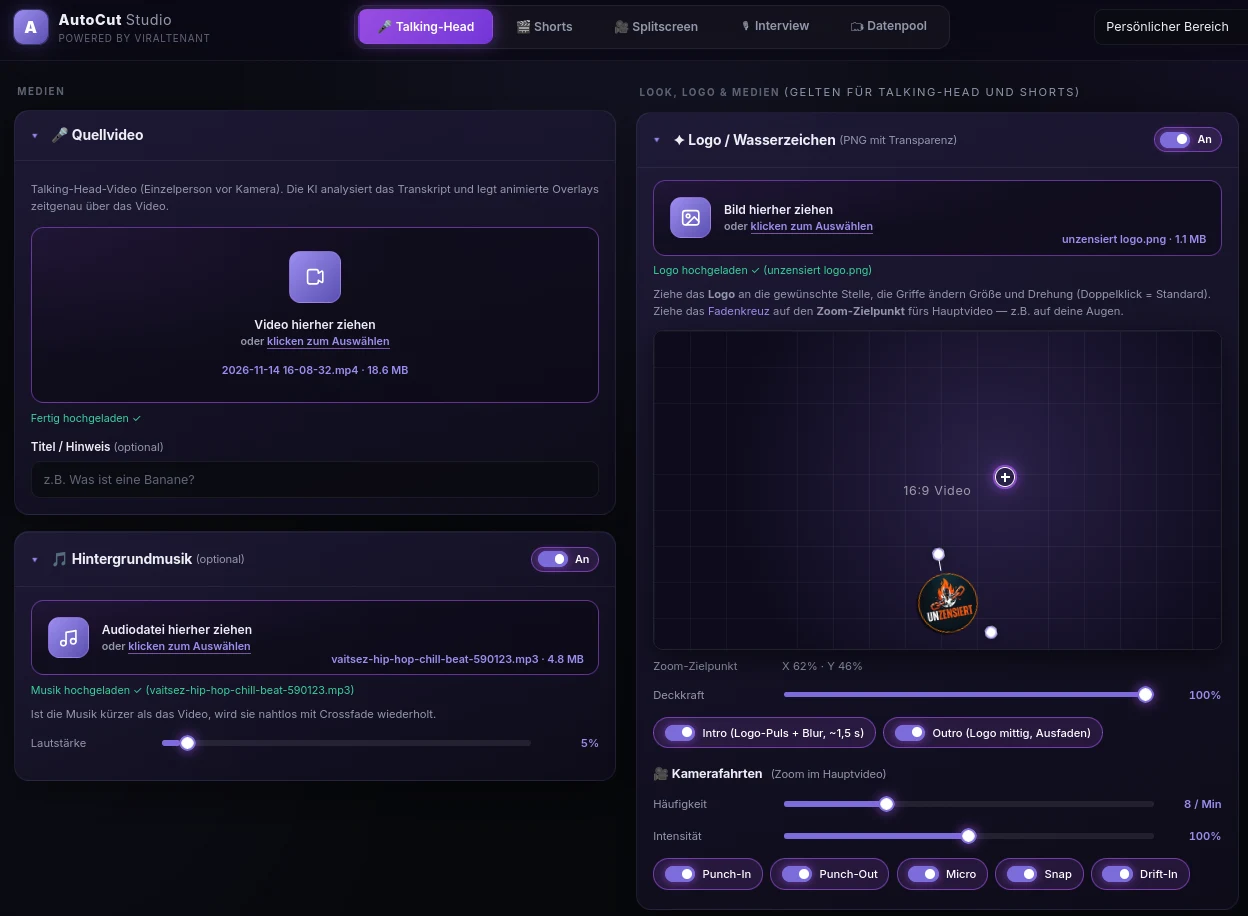
- Camera moves such as punch-in and drift, with adjustable frequency and intensity
You set how many overlays per minute you want and which element types are allowed.
Your own B-roll from the media pool
Upload images and clips with descriptive file names or a short description. The AI decides where each one fits and shows it as a cutaway, next to you or as a splitscreen. There are 7 transitions, 6 frames and 3 layouts, each of which can be switched off.
Branding
Logo with position, size, rotation and opacity, an animated intro and outro, and background music with volume and crossfade. The result is rendered in 16:9 at up to 50 fps.
Shorts from the same recording
The same job can also produce up to 10 vertical shorts with hook titles and word-by-word captions.
Sign in with Google or email. Free starter credit, no credit card needed. Same account as ViralTenant.
Frequently asked questions
Can I limit how many overlays the AI adds?
Yes. You set the density per minute and the allowed element types, and every effect has its own switch.
Can I use my own images and clips?
Yes. Upload them to the media pool and the AI places them as cutaways or split views.