How to Turn a Podcast Into Shorts With AI (Step by Step)
A one-hour podcast episode holds a dozen moments that could reach new listeners on TikTok, Reels and YouTube Shorts. Here is a workflow that turns one episode into shorts without hours of manual editing.
Step 1: Record so the AI can work with it
- One microphone per person, so every voice is clear
- One camera per person if you can, so the edit can switch between speakers
- Leave a little headroom above every face for the 9:16 crop
Recording remotely? VT Live Studio records up to 4 people in full quality, each locally on their own device, and hands the tracks to AutoCut for the edit.
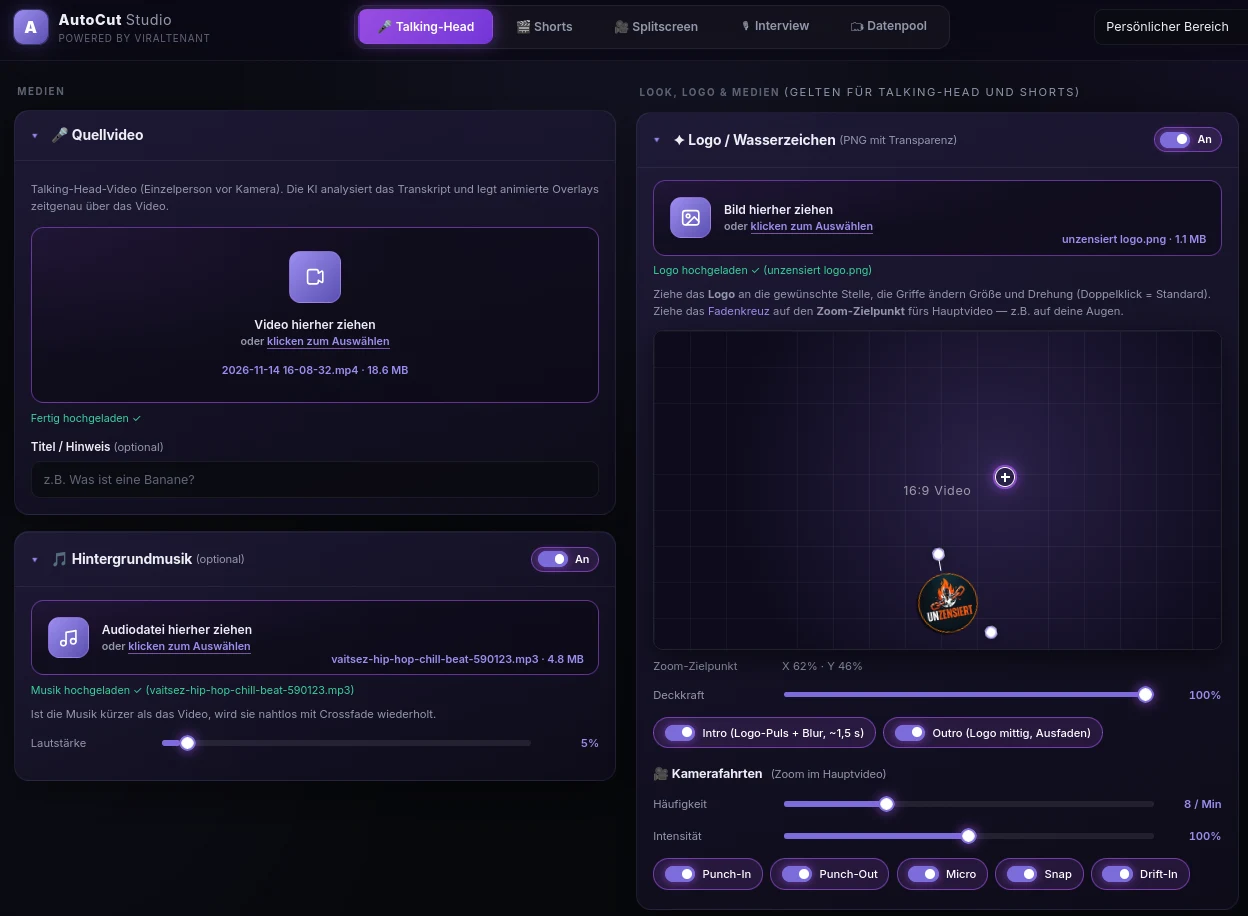
Step 2: Let the cut follow the speaker
Upload both camera recordings to AutoCut Studio. The multicam interview mode syncs them and cuts to whoever is speaking. For vertical shorts, the framing is centred on the speaker's head.
Step 3: Configure the shorts
- Number of shorts: up to 10 per episode
- Length: 15 to 240 seconds each
- Hook title at the start of every short
- Word-by-word captions in your style
- Optional punch-in zoom, progress bar and sound accents, each with its own switch
In the live 9:16 preview you drag logo, overlays and captions to where they should sit.
Step 4: Download and publish
When the job is done, download the shorts. If you run a ViralTenant creator site on the same account, you can crosspost them to 14 platforms from there.
What it costs
No subscription. You pay per finished job from your credit, failed jobs are free. New accounts get free starter credit to test the whole workflow.
Sign in with Google or email. Free starter credit, no credit card needed. Same account as ViralTenant.
Frequently asked questions
Can AutoCut Studio cut a two-camera podcast?
Yes. The multicam interview mode cuts to whoever is speaking and frames the speaker for 9:16.
How many shorts can I get from one episode?
Up to 10 per video, each between 15 and 240 seconds.